How to use Holo Calendar
Back to calendarTable of contents
- 1. About this page
- 2. Screen basics (PC & smartphone)
- 3. About search (PC & smartphone)
- 4. What the colors mean (PC & smartphone)
- 5. Sidebar features (PC & smartphone)
- 6. About custom calendars (PC & smartphone)
- 7. About feedback & bug reports (PC & smartphone)
- 8. Using on PC
- 9. Using on smartphones and tablets
- 10. FAQ
- 10.1 A stream that just started doesn't appear on the calendar right away
- 10.2 A stream has ended but still shows as "Live", or its description/end time is blank
- 10.3 A stream/video that was displayed a moment ago has disappeared
- 10.4 A member I want to watch is not in the list
- 10.5 I want to see the same member combination every time
- 10.6 I want the same view settings on my PC and smartphone
- 10.7 What happens when a stream runs past midnight?
- 10.8 Are URLs in the description clickable?
- 10.9 Can I tell which members are collaborating?
- 10.10 The calendar is hard to read on my smartphone
- 10.11 I only want to see streams in a specific state, such as live or upcoming
- 10.12 I want to send a request or report a bug
- 10.13 Can I see Twitch streams?
- 10.14 What data / APIs does this app use?
- 10.15 I want to know what has changed in this app
About this page
Holo Calendar is an unofficial fan-made app developed and run by a single individual, with no affiliation with hololive production or its talents.
It shows the schedule of hololive talents' YouTube streams and videos (plus Twitch streams for members with a registered Twitch channel) in an Outlook-style calendar, a simple list, or a thumbnail-focused tile layout similar to Holodule (schedule.hololive.tv). You can check multiple talents' schedules side by side.
It works on both PC and smartphones. Some displays and controls differ depending on screen size, so the first half of this page explains usage common to both, and the second half explains PC-specific and smartphone-specific usage.
This app is developed with Claude Code, Anthropic's AI coding tool.
We are gradually adding past archives, too. The past data we have already collected can be viewed by going back through the dates, and the rest is added little by little (everything should be in place by around August 2026).
And it is not just about seeing old streams. Every stream and video is automatically tagged with things like the game title, project name, and genre, so you can dig into who did what, and when, from many different angles. For example: "my oshi's horror game streams, oldest first", "karaoke streams from 2021 across every member", or "every stream in the Mario series". See "Search" below for how.
See our Terms of Use & Privacy Policy.
Screen basics (PC & smartphone)
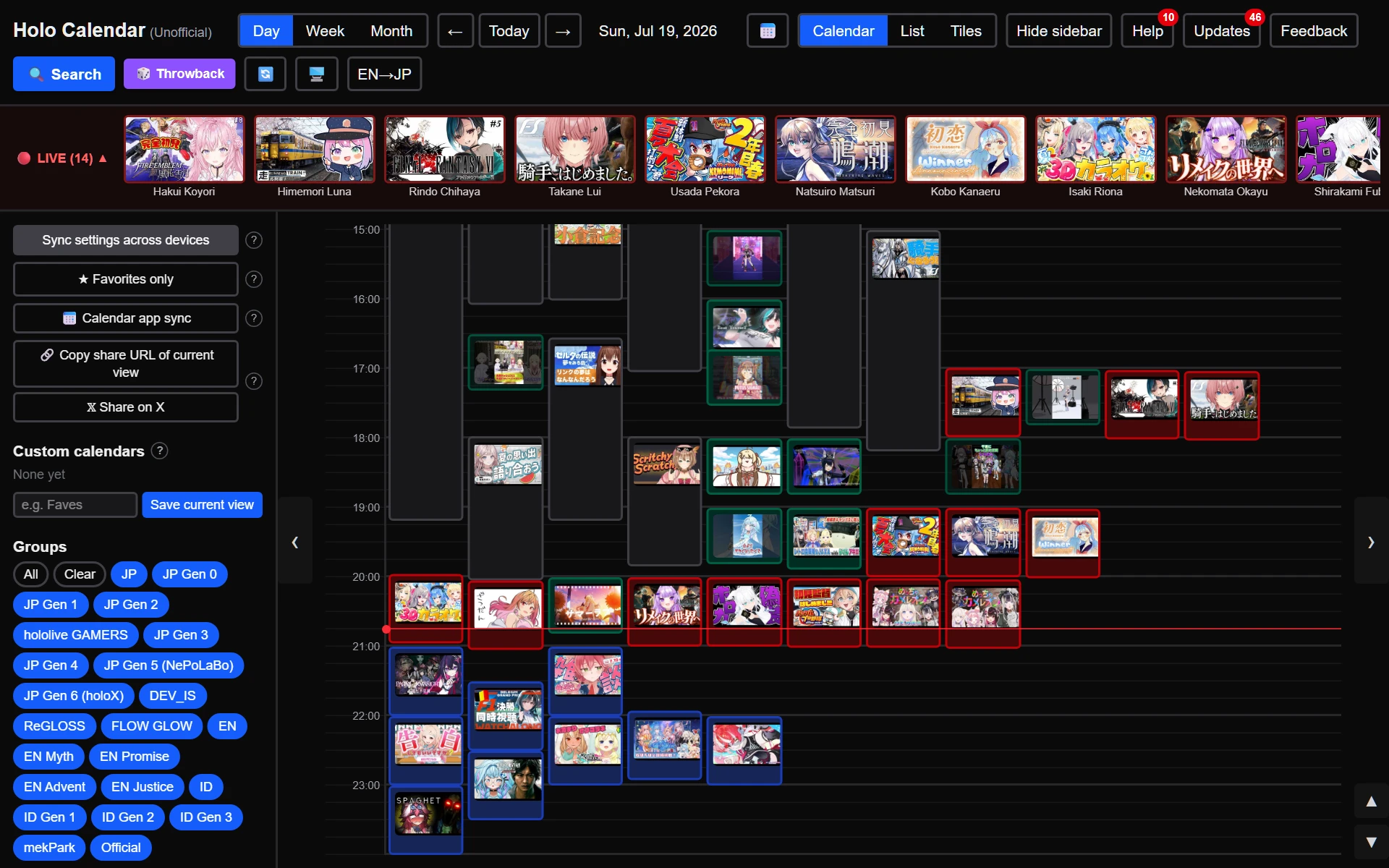
- Use "Day", "Week", and "Month" at the top to switch the range. "←" "→" move back and forth, and "Today" returns to the current date. Click the 📅 icon to pick a date directly.
- The "Calendar", "List", and "Tiles" buttons to the right of the date picker switch the main layout. "Calendar" shows blocks whose length matches each stream's duration, "List" is a simple chronological list of fixed-height rows, and "Tiles" is a list with large thumbnails. Your choice is remembered on this device and used next time.
- In the Day/Week "Calendar" layout, each stream appears as a block whose length matches its start–end time. Overlapping streams are placed side by side.
- Click a block to open a detail window with the thumbnail, description, and more. However, clicking the thumbnail image itself (in the Day, List, and Tile views) takes you directly to the video/stream page without opening the detail window.
- Anniversaries such as birthdays and debut days appear as light purple bars at the top of the day (with an "Nth Anniversary" label). Click one to see related members and details.
- In the List or Tile view for Week/Month, click a date heading (e.g. "2026/07/06 (Mon)") to collapse that day's contents; click it again to restore. The "Expand all" / "Collapse all" buttons at the top open or close all displayed dates at once.
- When today is displayed, a red marker shows the current time (a red dot and line in the Day/Week views, and a "Now hh:mm" divider row in the List/Tile views).
- While someone is live, a LIVE bar (🔴 LIVE) appears under the header with thumbnails of ongoing streams. Click a thumbnail to go straight to the stream. You can collapse it with ▲, and members hidden in the sidebar are not shown.
- Click a member's name in the detail window to open their member page (profile, upcoming streams, anniversaries, and past archives in one place) in a new tab. It includes guest appearances, and "View in calendar" jumps to a calendar filtered to just that member.
- Use the 🔍 button in the header (or Ctrl+F / ⌘F on Mac) to search streams and videos by title or member name. It searches all time, and clicking a result opens its detail window. It also supports multiple space-separated keywords (all must match), "-keyword" to exclude, and filtering by period, member, and status. To use the browser's built-in find-in-page instead, press Ctrl+F again while the search is open.
- Press the 🔄 button in the header to refetch only the latest stream/video information (descriptions, statuses, etc.) while keeping the date you are viewing. The page also refreshes automatically every 3 minutes while it is open.
- The icon near the right end of the header (🖥️/☀️/🌙) switches the color scheme between Auto (follow your device), Light, and Dark. Your choice is remembered on this device.
- The "EN→JP" button in the header switches the display language between Japanese and English. On your first visit, the language is detected automatically from your browser settings, and your choice is remembered on this device. Note that stream/video titles and descriptions are always shown as they appear on YouTube/Twitch.
About search (PC & smartphone)
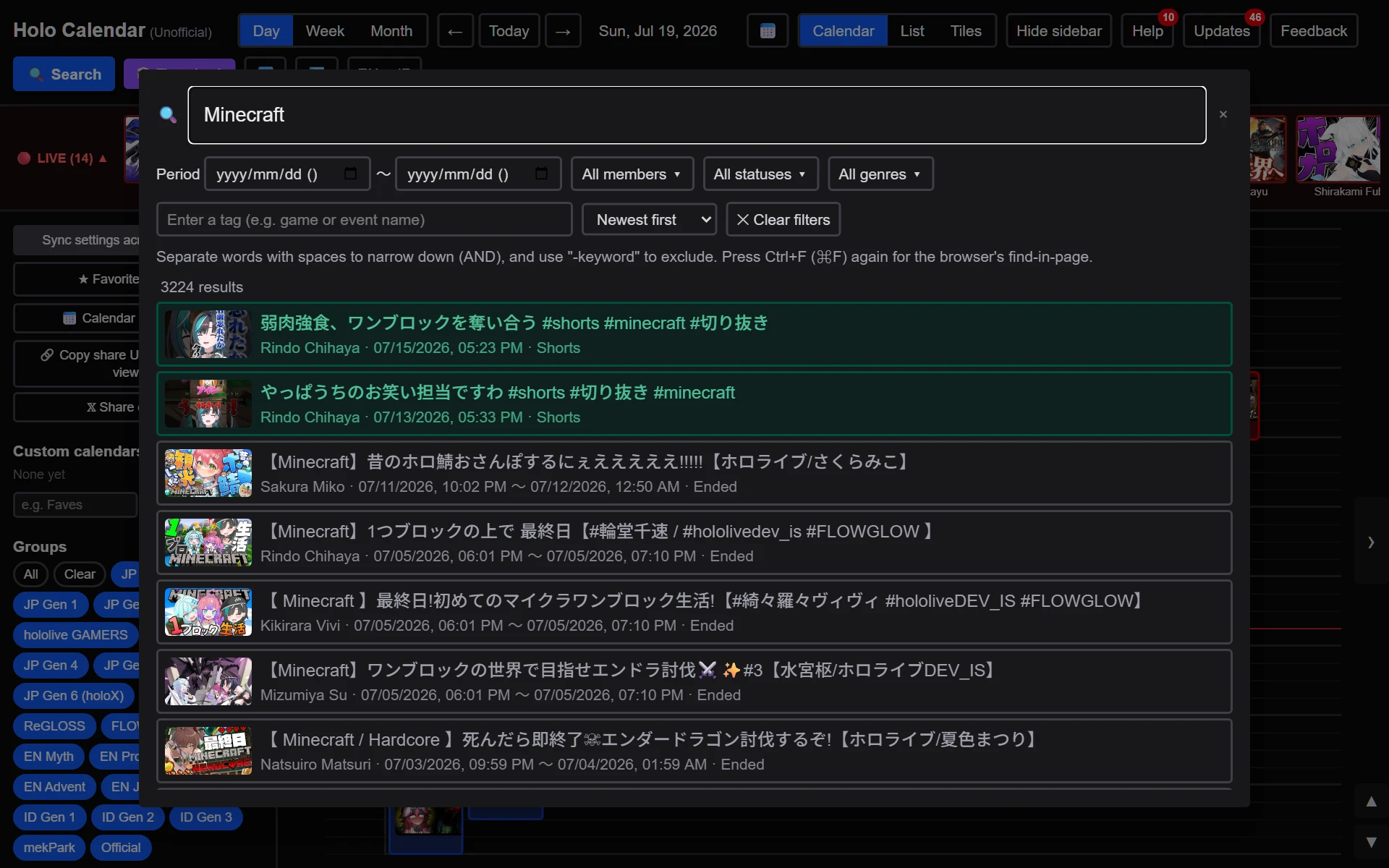
- How to open: the 🔍 button in the header, or Ctrl+F (⌘F on Mac).
- Basic search: type part of a title or a member name and results appear as you type. Member names match in both Japanese and English. Clicking a result opens its detail window.
- It searches all time — past streams and videos (archives) also appear. Past items now show on the calendar as well (added gradually).
- Multiple keywords (AND): separate words with spaces to require all of them. Example: "Minecraft endurance". You can also combine a member name with a keyword.
- Exclude (-keyword): prefix a word with "-" to exclude it. Example: "karaoke -members".
- Filters: below the search box you can filter by period, member, status (Live/Upcoming/Ended/Video), and genre. You can select multiple members, and the results also include streams where they appear as a guest. Genres can also be multi-selected, and anything matching any of them is shown.
- Filter by tag (the main tool for digging into the past): every stream and video is automatically tagged with things like the game title, project name, recurring show name, and series (for example Minecraft, Hologra, Asamio, Mario Kart World). Type in the tag box to narrow the candidates, or click it while empty to drill down from broad categories (Games → RPG → Final Fantasy (series) → Final Fantasy X, and so on). You can also search by tag alone, without a keyword.
- Choosing a parent tag also brings up streams tagged with anything beneath it. Filtering by "RPG", for example, includes streams tagged only with an individual game such as Dragon Quest, Final Fantasy, or Pokémon. Filtering by "Games" covers every game stream.
- Games are organized into 25 genres (Horror Games, FPS / TPS, RPG, Action / Adventure, Survival / Crafting, Rhythm Games, Racing, Fighting, Puzzle, Visual Novel / Mystery, Table / Card / Gambling, Mobile / Gacha, Co-op / Party, Simulation, Roguelike, Strategy, MOBA, Sports, Quiz, Shoot 'em up, Rage / Silly Games, Anime / Manga / Movie Based Games, and more). A single game can carry more than one genre — Slay the Spire, for example, can be found under both "Roguelike" and "Card Games".
- Sort order: choose between Newest, Oldest, and Relevance. "Oldest" lets you follow a member's or a tag's streams from the very beginning — handy when you want to watch a series from its first episode. "Relevance" is available only when you have entered a keyword.
- Share and save searches by URL (added 2026-07-17): your search conditions are reflected in the address bar. Send that URL and the other person sees the same results, or bookmark it to bring the same search back next time. Reloading the page keeps your conditions (closing the search restores the original URL).
- Ways to search: filters can be combined.
- Member "Pekora" + tag "Minecraft" + sort "Oldest" → follow your oshi's Minecraft streams from the very first one
- Tag "Horror Games" + status "Ended" → horror streams across every member
- Period "2021" + genre "Karaoke" → that year's karaoke streams
- Tag "Mario series" → the whole series, whatever the individual title
- Tags and genres are applied automatically, so occasionally one may be missing or wrong. We are also importing past streams and videos every day, so depending on when an item was imported it may not be tagged yet. If you would like a tag added, or spot a mistake, please let us know from "Requests" in the header — it really helps.
- Show more: results are shown 50 at a time. Use "Show more" at the bottom to load more.
- Search history: your recent keywords (up to 10) appear when you open the search box and can be clicked to search again. History is stored only on this device and can be cleared anytime with "Clear".
- To use the browser's built-in find-in-page, press Ctrl+F (⌘F) again while the search window is open.
What the colors mean (PC & smartphone)
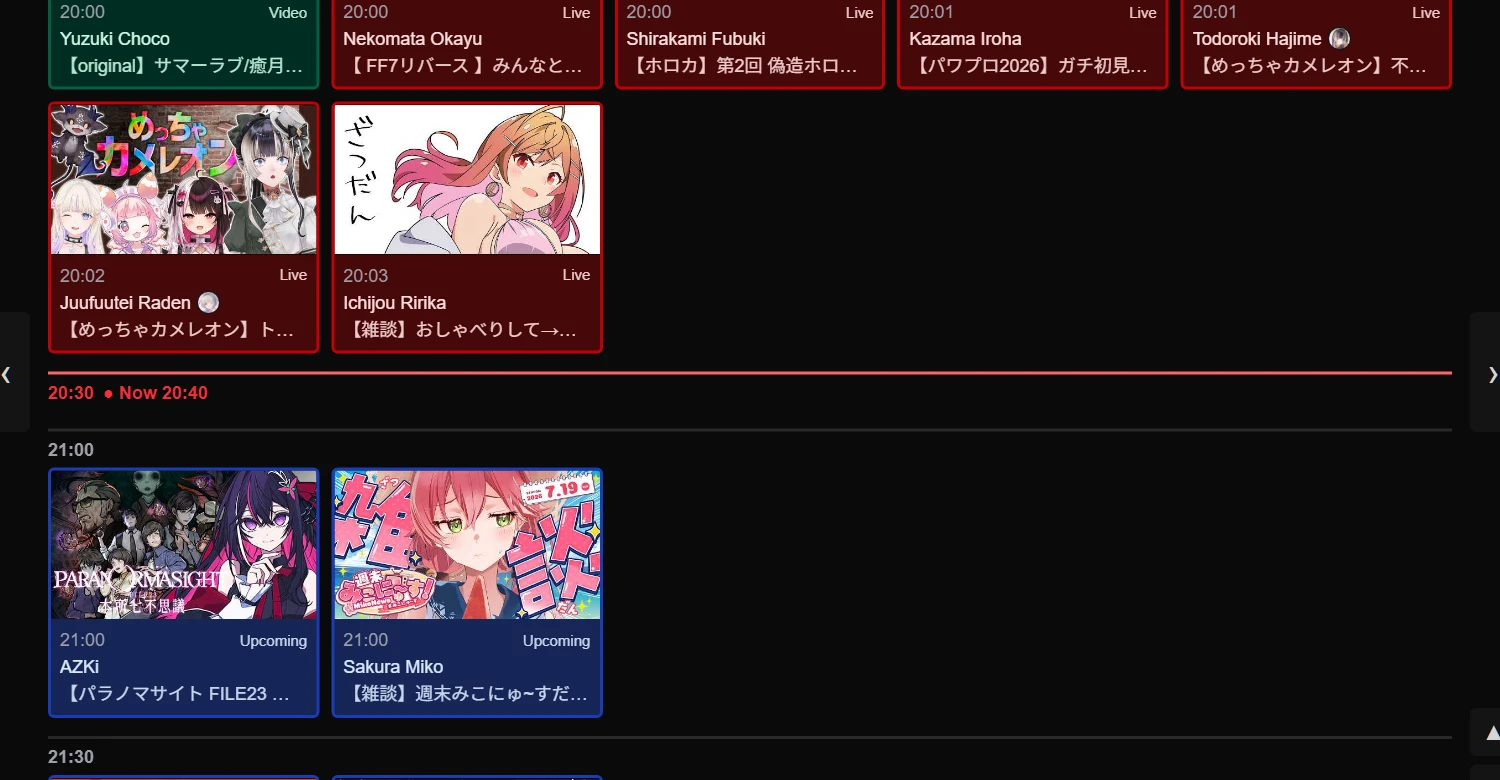
A purple dot to the left of a member's name marks a Twitch stream (to distinguish it from YouTube streams).
Sidebar features (PC & smartphone)
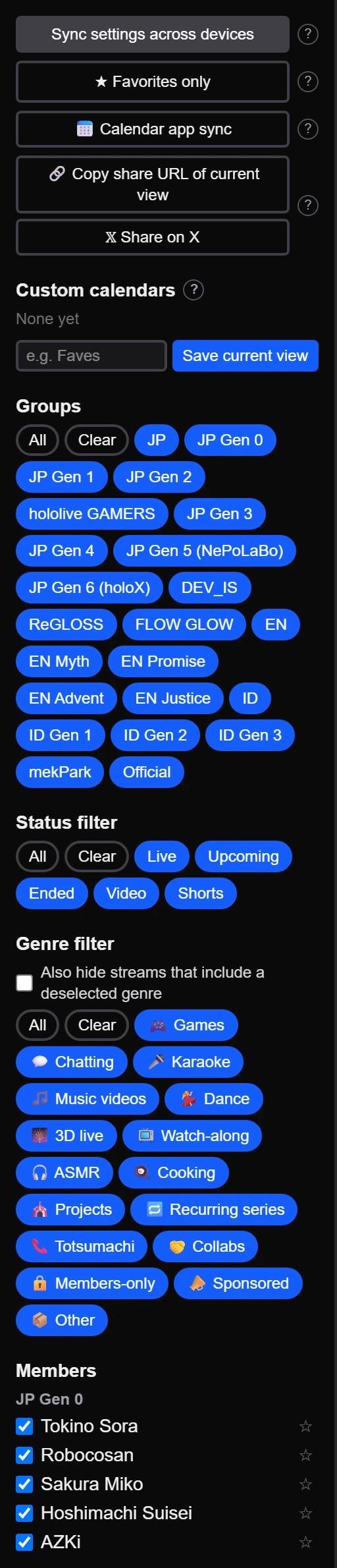
- Groups: toggle visibility for whole groups (generations, units, etc.) at once. There are also "All" and "Clear" buttons.
- Status filter: toggle "Live", "Upcoming", "Ended", and "Video" individually. This also has "All" and "Clear" buttons.
- Calendar app sync: create a URL from "📅 Calendar app sync" and add it to Google Calendar or other calendar apps to see your oshi (★) streams and anniversaries in the calendar you already use (guest appearances included). Only the title, time, and watch link are added to your calendar — out of consideration for rights holders, thumbnails, descriptions, and other data are not included. Updates may take a few hours to a day to appear. The URL is personal — don't share it with others (regenerating it invalidates the old URL).
- Genre filter: narrow the view by automatically detected genres (Games / Chatting / Karaoke / Music videos / Dance / 3D live / Watch-along / ASMR / Cooking / Projects / Recurring series / Totsumachi / Collabs / Members-only / Sponsored / Other). Detection is automatic, so it may occasionally differ from the actual content. The detected genres are also shown in each stream/video's detail window.
When a stream has more than one genre, it normally stays visible as long as at least one of them is on (for example, a stream tagged both "Collabs" and "Sponsored" only disappears once you turn off both). Check "Also hide streams that include a deselected genre" and a stream disappears if even one of its genres is off (in the same example, turning off just "Sponsored" hides it).
To narrow things down more finely than a genre — by game title, project name and so on — use the tag filter in the search window. - Custom calendars: see "About custom calendars" below.
- Members: toggle visibility per member.
- Favorites (★): press the ☆ to the right of each member under "Members" to mark them as a favorite (also available next to the member name in a stream/video's detail window). Favorites' streams and videos —including streams where they appear as a guest — are highlighted with a gold border and a ★, and their icons are shown with priority in the Month view. Use "★ Favorites only" at the top of the sidebar to filter to favorites-related events, and the header shows your favorite's next schedule (a 🔴 appears on the browser tab while a favorite is live). Favorites are included in "Sync settings across devices".
- Sync settings across devices: issue a sync code for transferring your current view settings to another device (smartphone, PC, etc.).
- Time zone: Use "🌐 Time zone" to show stream and video times in the local time of a region you choose. It defaults to "Auto (device setting)", which uses your device's time as before. A 🌐 badge appears in the header while a time zone is selected. The setting also applies to search date ranges and member pages, while anniversary dates stay as-is. It is saved on this device only (not included in "Sync settings across devices").
- Use "Hide sidebar" / "Show sidebar" in the header to toggle the sidebar — useful when you want the calendar to fill the screen.
About custom calendars (PC & smartphone)
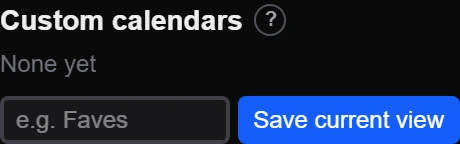
- A feature that saves your member selection and view settings together under a name, so you can restore them later with one click. Handy when you switch between several patterns, such as an oshi-only set or per-generation sets.
- The following are saved:
- The member checkboxes selected in the sidebar
- The layout (whether "Calendar", "List", or "Tiles" was selected)
- The range (whether "Day", "Week", or "Month" was selected)
- If you save while "Expand all" or "Collapse all" is selected in the List or Tile view, that open/closed state is saved too. Collapsing only some individual days is not saved (the affected dates change with the displayed period, so it would lose its meaning).
- To save: arrange the view the way you like, enter a name in the "Custom calendars" box near the bottom of the sidebar, and press "Save current view".
- Share URL: use "Copy share URL of current view" to turn your current member selection into a URL you can share with friends. Whoever opens it sees a shared-view banner and can save it as their own custom calendar with one click (just opening it doesn't change their settings). The URL contains only the member selection — it doesn't reveal who shared it.
- To restore: click a saved name in the list to apply those settings.
- To rename / delete: use the ✎ button next to each item to rename it, and the × button to delete it.
- Up to 30 can be saved per device (browser).
About feedback & bug reports (PC & smartphone)
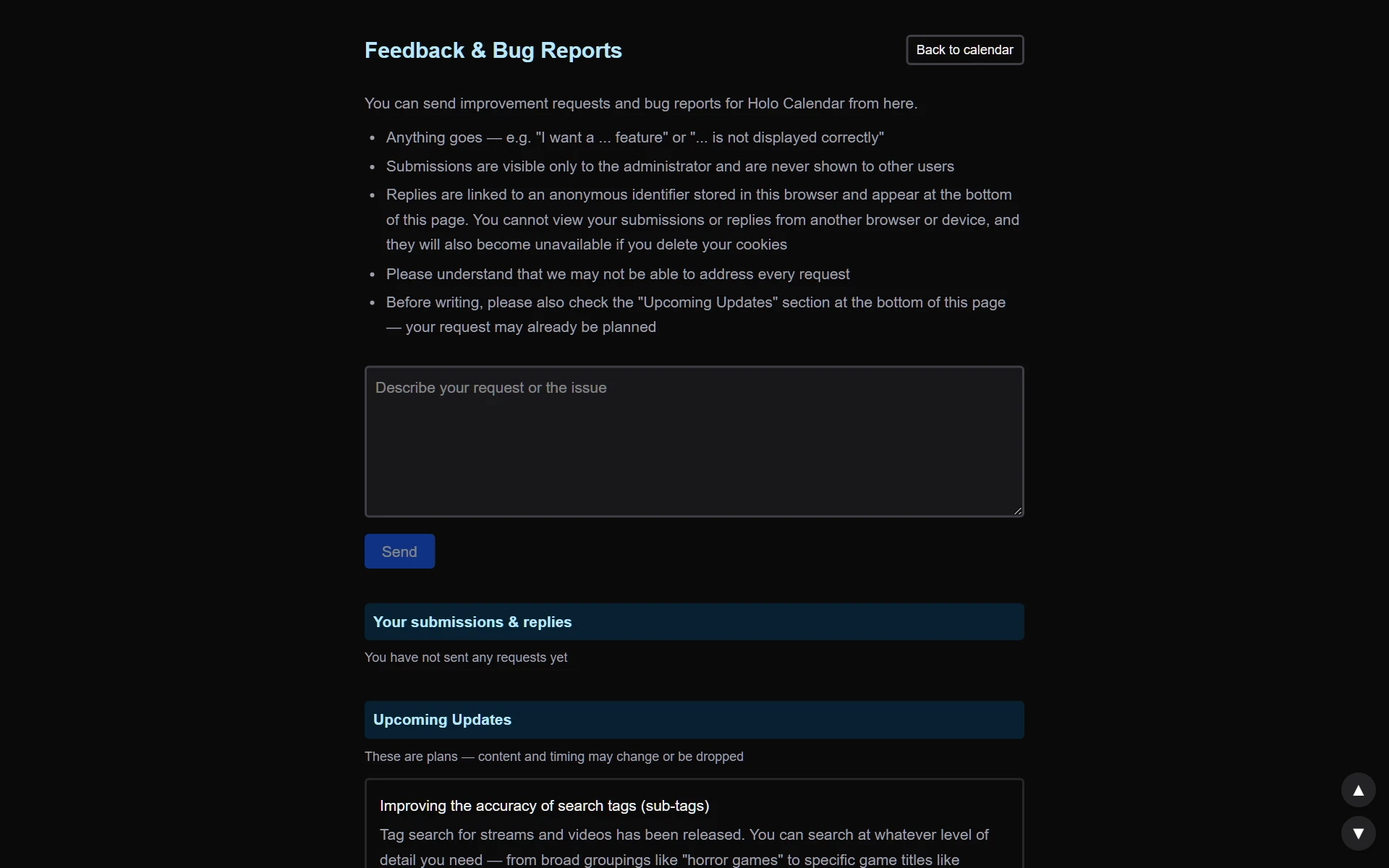
- Use the "Feedback" button in the header to send improvement requests and bug reports — no login required.
- Submissions are visible only to the administrator and are never shown to other users.
- Replies from the administrator can be viewed by revisiting the Feedback page in the same browser you sent from. Note that you cannot view your submissions/replies from another browser or device, or after deleting cookies.
- When you have an unread reply, a count badge appears on the "Feedback" button when you open the calendar. Opening the Feedback page marks it read and clears the badge.
- Please understand that we may not be able to address every request.
Using on PC
Content specific to mouse-operated environments such as PCs.
- Keyboard shortcuts are available — press Q anytime for the full list: ←/→ = previous/next, T = today, D/W/M = day/week/month, 1/2/3 = calendar/list/tiles, S = sidebar, R = refresh, / = search, O = oshi-only, Esc = close (disabled while a text field is focused).
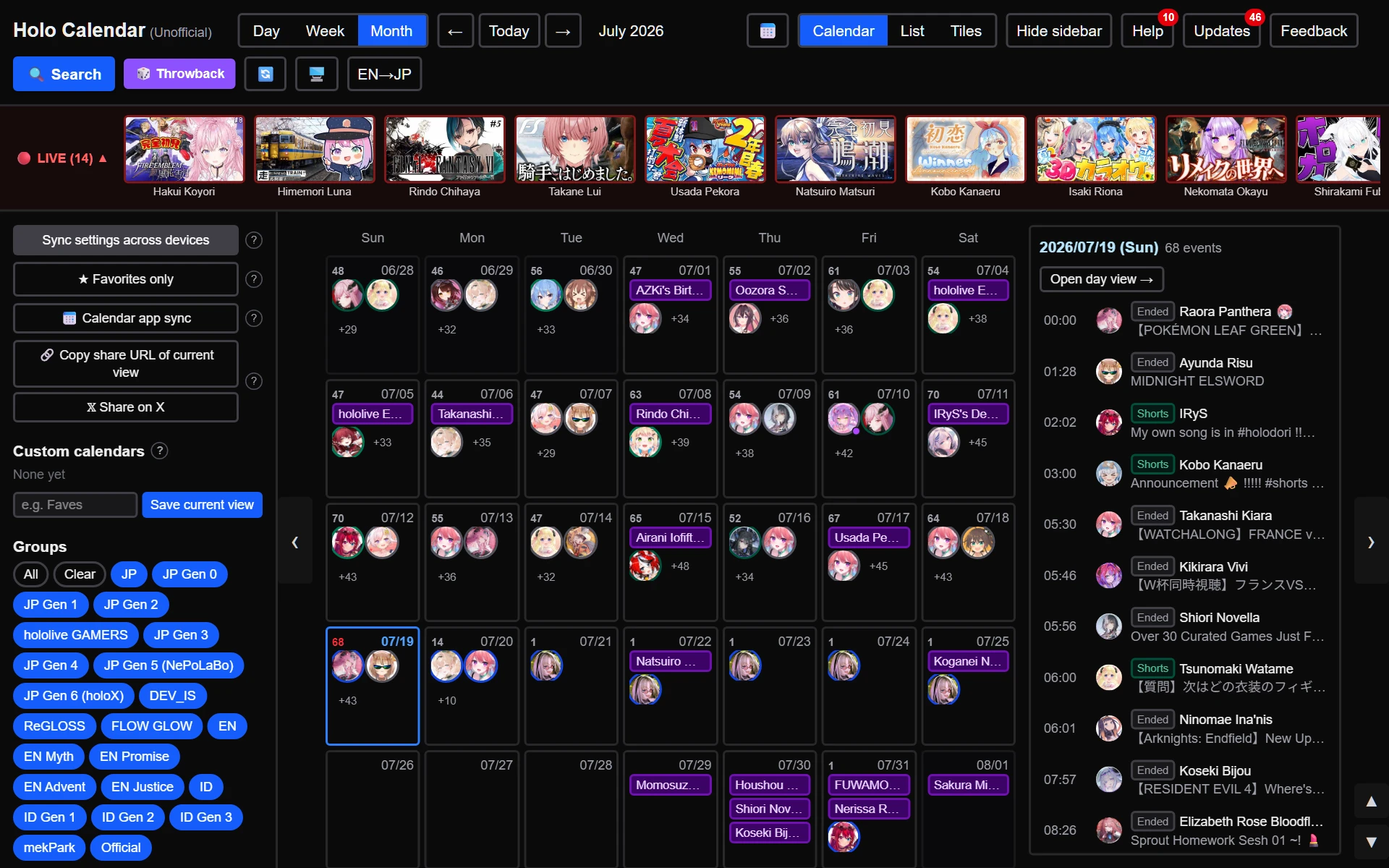
- Faint arrow buttons (‹ ›) appear at the left and right edges of the calendar, like turning pages in an e-book reader. Clicking them moves back and forth just like the "←" "→" buttons at the top.
- The Month × Calendar view has two panes: a month grid on the left and the selected day's schedule on the right. Each day cell shows its event count (red if something is live), anniversaries, and the icons of members with streams/videos that day (each member appears once; the ring color shows their most important status). Click a date or "+N" to switch the list on the right, and use "Open day view →" to jump to that day's Day view. Clicking an icon directly opens the detail window.
- The sidebar's open/closed state is remembered on this device and restored next time.
Using on smartphones and tablets
Content specific to narrow, touch-operated devices such as smartphones.
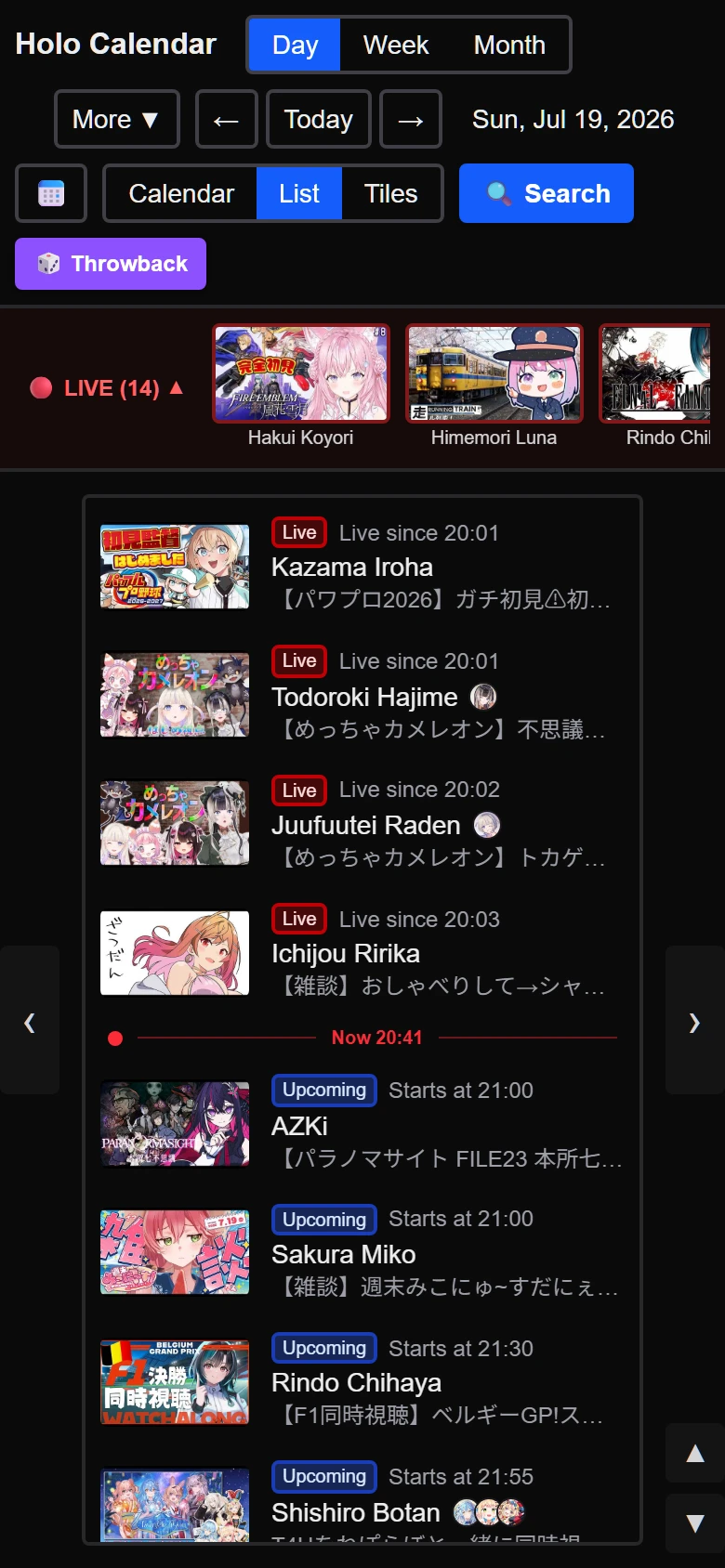
- We recommend the List or Tile view. When many streams overlap, the "Calendar" block layout gets cramped on narrow screens; fixed-height rows or thumbnail-focused tiles in chronological order are easier to scan.
- Swipe the calendar left or right to move back and forth (swipe left for next, right for previous). In horizontally scrollable layouts such as the Week × Calendar view, a swipe only turns the page when the content is already at its left or right edge.
- In the Month × Calendar view, each day shows its number of events (in red if something is live), plus a 🎂 on days with anniversaries. Tap a date to open that day's schedule below it. Press "Open day view →" to jump to that day in the Day view.
- To make the most of the screen, the sidebar always starts closed. Press "Show sidebar" in the header to change member filters and other settings.
- The header is kept compact. The things you use most (day/week/month, moving between dates, the calendar/list/tile switch, and search) stay visible at all times; everything else (sidebar, help, changelog, requests, refresh, theme, language, and your oshi's next stream) is behind the "More ▼" button in the top right.
- In search, the filters start collapsed, so your results get much more room. While collapsed, a single line still shows what you are filtering by (for example "Filters: Mario series"), and you can tap it to open them again. The tag and member panels have a "Show results (N)" button at the bottom to take you straight back to your results, and your phone's Back button closes the search window.
- Automatic refresh may pause while the browser tab is in the background, but when you come back, the page updates automatically if enough time has passed since the last refresh.
FAQ
Q. A stream that just started doesn't appear on the calendar right away
A. Upcoming/live information is refreshed automatically every 7 minutes. Press the 🔄 button in the header to fetch the latest information immediately without changing the displayed date.
Q. A stream has ended but still shows as "Live", or its description/end time is blank
A. The exact end time and description are fetched automatically a little while after a stream ends. It can take up to a few dozen minutes to be reflected.
Q. A stream/video that was displayed a moment ago has disappeared
A. When we detect that a stream/video has been made private or deleted on YouTube, it is automatically hidden from the calendar as well (detection may take some time).
Q. A member I want to watch is not in the list
A. Only members registered in the admin panel are displayed. If someone is missing, please contact the administrator.
Q. I want to see the same member combination every time
A. You can name and save your current view settings in the "Custom calendars" section of the sidebar. See "About custom calendars" above.
Q. I want the same view settings on my PC and smartphone
A. Use "Sync settings across devices" at the top of the sidebar: enter the 6-digit sync code (valid for 10 minutes) issued on one device into the other device to transfer your member settings and more.
Q. What happens when a stream runs past midnight?
A. A stream that starts late at night and crosses midnight is split into two blocks at the date boundary — one for each day. Clicking either opens the same stream's details.
Q. Are URLs in the description clickable?
A. URLs in the description inside the detail window are automatically turned into links that open in a new tab.
Q. Can I tell which members are collaborating?
A. If the description credits a collab partner's channel as "@handle" and it matches a registered member, the detail window shows "Collab: name" under the time information (nothing is shown if there is no match).
Q. The calendar is hard to read on my smartphone
A. On narrow devices such as smartphones and tablets, we recommend the List or Tile view. See "Using on smartphones and tablets" above.
Q. I only want to see streams in a specific state, such as live or upcoming
A. Use the "Status filter" in the sidebar to toggle "Live", "Upcoming", "Ended", and "Video" individually.
Q. I want to send a request or report a bug
A. Use the "Feedback" button in the header. If the administrator replies, you can view it by revisiting the Feedback page in the same browser (see "About feedback & bug reports" above).
Q. Can I see Twitch streams?
A. For members with a registered Twitch channel, their Twitch "live" and "ended" streams are also shown (the purple dot to the left of a member's name marks Twitch). Twitch schedules (upcoming streams) are not supported. Also, since stream endings are detected by checks every few minutes, the end time may be off by a few minutes (this is also noted in the detail window).
Q. What data / APIs does this app use?
A. Upcoming/live information comes from Holodex (an unofficial service that aggregates VTuber YouTube stream information). Descriptions and exact start/end times are supplemented via the YouTube Data API. Live/ended states for members with a registered Twitch channel come from the Twitch API.
Q. I want to know what has changed in this app
A. Use the "Updates" button to the right of "Help" in the header. When there are updates you haven't seen, the button shows a count badge, and those items are highlighted with a "New" tag on the Updates page. You can also filter updates by tags such as "PC" and "Mobile".